

When you’re building analytics for users, you quickly realize something: not every definition belongs on the Model.
A lot of business logic sits in an awkward middle ground, too context-specific to hardcode into the Model but too important to leave scattered across one-off formulas. And in most tools, if the logic doesn’t live on the Model, every team ends up rebuilding the same thing over and over again.
That’s where Query Sets and Column Sets in ThoughtSpot come in. They create a reusable logic layer built on top of a Model, so users can define, standardize, and reuse business logic without editing the underlying data structure or writing SQL.
Column Sets: Reusable Analytics Logic for Columns
Column Sets are a consistent, reusable way to define groups based on columns, eliminating the need to write long IF-THEN-ELSE definitions directly on the data model. Intelligent grouping rules make creating sets fast and simple, letting you apply rules like contains 'shirts' or starts with 'Z' to categorize values efficiently.
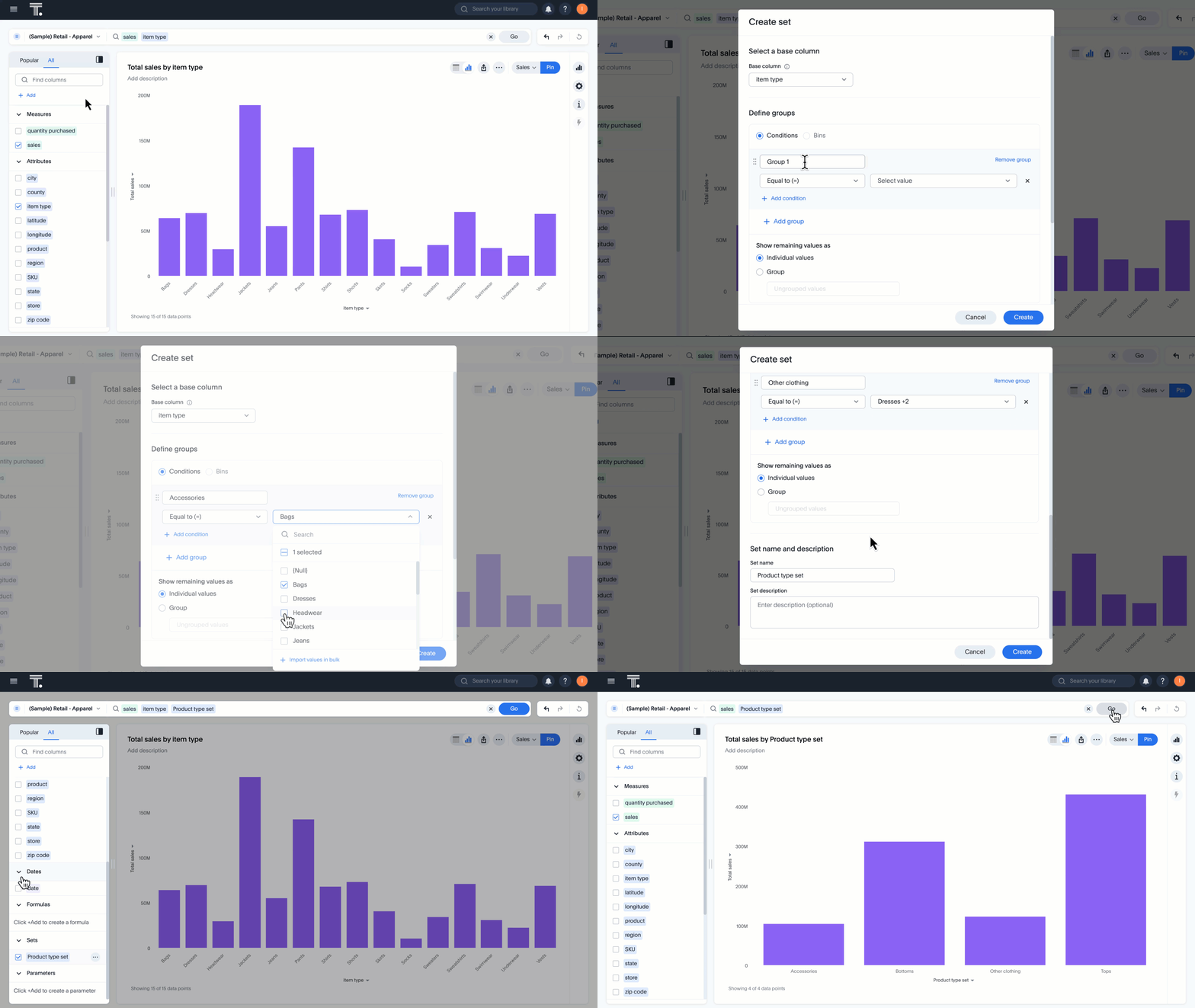
You can use it to group countries into regions, products into categories, or bin numerical data into clear ranges such as revenue tiers or age groups. These definitions matter, often for a specific analytical focus area or subset of users, but they don’t belong on the Model. They’re often team-specific, they change over time, and they can easily clutter a governed Model that’s meant to stay clean and stable.
Examples:
Group States into North, South, East, and West regions
Create revenue bands like “Low,” “Mid,” “High”
Segment customers as “Enterprise” or “SMB”
Query Sets: Query-on-Query Analysis Using Aggregated Metrics
Query Sets let you build reusable logic on top of aggregated metrics, enabling true query-on-query analysis without SQL. Instead of relying on complex, nested SQL and manual query optimization, you can define conditions based on calculated metrics, grouped outcomes, or multi-column rules for more precise analysis.
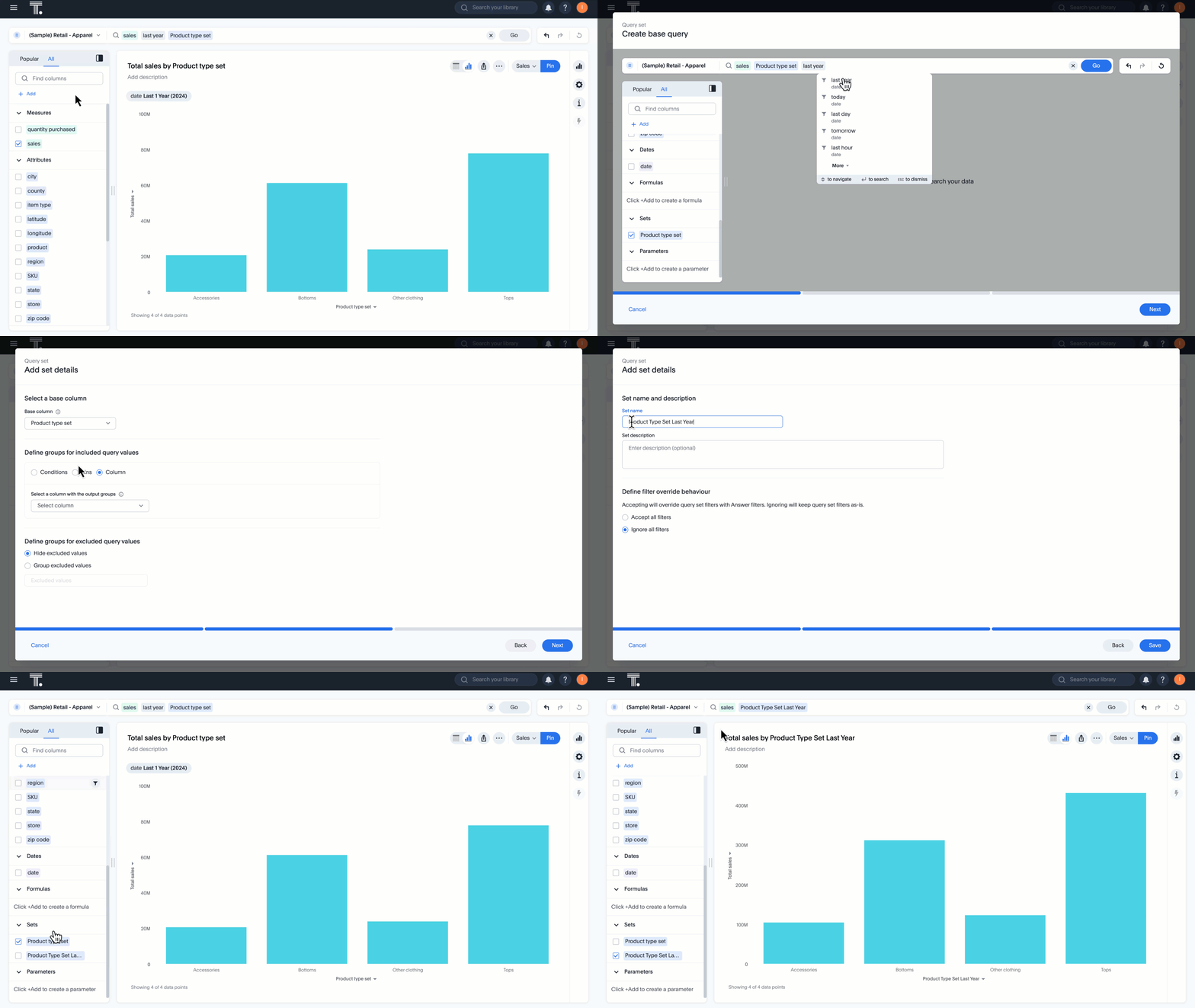
Aggregated states or computed thresholds in the Model require formulas, making the process tedious and limiting definition to users with the right permissions. Query Sets simplify this by providing an easier, governed way to create the logic without modifying the Model, resulting in faster, more targeted analysis that scales across teams.
Examples:
Define “Top Customers by Sales Rank” across regions
Identify users by first purchase date for retention analysis
Create a “High-Value Basket” for purchase behavior studies
When to Use Column Sets vs Query Sets
| Criteria | Column Sets | Query Sets |
|---|---|---|
| Logic is based on simple column grouping | Yes | No |
| Logic is based on metrics or aggregates | No | Yes |
| Logic should not live on the model | Yes | Yes |
| You need a reusable definition | Yes | Yes |
| You need complex query-on-query logic | No | Yes |
| The definition is team-specific | Yes | Yes |
Why Column Sets and Query Sets Matter
Column Sets and Query Sets do more than make definitions reusable. They let users run advanced query-on-query analysis without writing SQL, making complex insights simple and accessible.
For business users, this means creating definitions, segmenting data, and exploring aggregated metrics independently, without waiting on the data team.
For data teams, the Model stays clean and focused while complex logic lives outside it, enabling sophisticated queries and calculations without SQL and reducing the load on analysts.
At the organizational level, Sets provide a flexible layer that scales across Answers and Liveboards, reduces errors, and supports advanced analysis for all users.
Now that you understand the power and benefits of Column Sets and Query Sets, here’s how to get started and build your first ones
Create a Column Set
Create a Query Set
Build Once, Scale Everywhere
Column Sets and Query Sets give business users the freedom to explore and perform advanced, query-on-query analysis without SQL, while giving data teams control to maintain governance.
By defining groupings, filters, and cohorts once, you can simplify complex calculations, reduce manual work, and enforce consistency across your analytics, creating a foundation for faster, governed, and collaborative insights that scale effortlessly across the organization.
Ready to simplify analytics for your team? Start building your first Column Set or Query Set in ThoughtSpot today or schedule a demo to see reusable logic in action.


