Slack AI Teammates: How AgentSpot Agents Know When to Reply


by Sam Bowerman, Associate Product Manager at ThoughtSpot
Published: Nov 13, 2026 | 9 min read


Key Takeaways

- With listen mode, an AgentSpot agent follows a Slack channel and replies in a thread only when it can help.
- You get multiplayer AI where your team already works, with every answer visible to the whole channel.
- You ask the way you'd ask a colleague, so nobody has to @mention the agent or open AgentSpot.
- Admins pick one of three reply modes per channel and accept a disclosure before an agent starts listening.
- Every automatic reply is signed with the agent's name and labeled "Answered automatically."
Your team's busiest Slack channel fills up with the same questions: how much PTO carries over, or whether a client dinner needs a receipt. With listen mode, now available in AgentSpot, your agent reads along, joins a thread when it has something useful to add, and stays quiet when it doesn't.
Most AI assistants wait in a separate tab until someone opens them, and each answer stays in one person's chat. AgentSpot agents could already reply in Slack when someone @mentioned them, which works if you know the agent exists and remember to tag it. If you're asking a quick question in a busy channel, though, you probably do neither.
How Does Multiplayer AI Work in Slack?
Multiplayer AI is AI that works with a whole team instead of one person at a time: one person builds an agent, and everyone can use it, as covered in AI Is Going Multiplayer. What changes in Slack? People and an agent now work in the same conversation.
That changes who benefits from an answer: when the agent replies in a thread, everyone in the channel can see the question, the answer, and the sources. A colleague can add context underneath, and the next person with the same question finds it already answered.
Nobody has to open AgentSpot or remember the agent's name, either. Because it works in the background of a conversation until it has something to add, you'll often hear this kind of agent called an ambient agent.
What does that look like in practice? In a demo #hr-policies channel set to When it can help, three messages came in over about 10 minutes: a question about PTO, a lunch invite, and a reminder about a benefits session.
Just 29 seconds after the PTO question arrived, the agent answered it in a thread and left the other two alone.
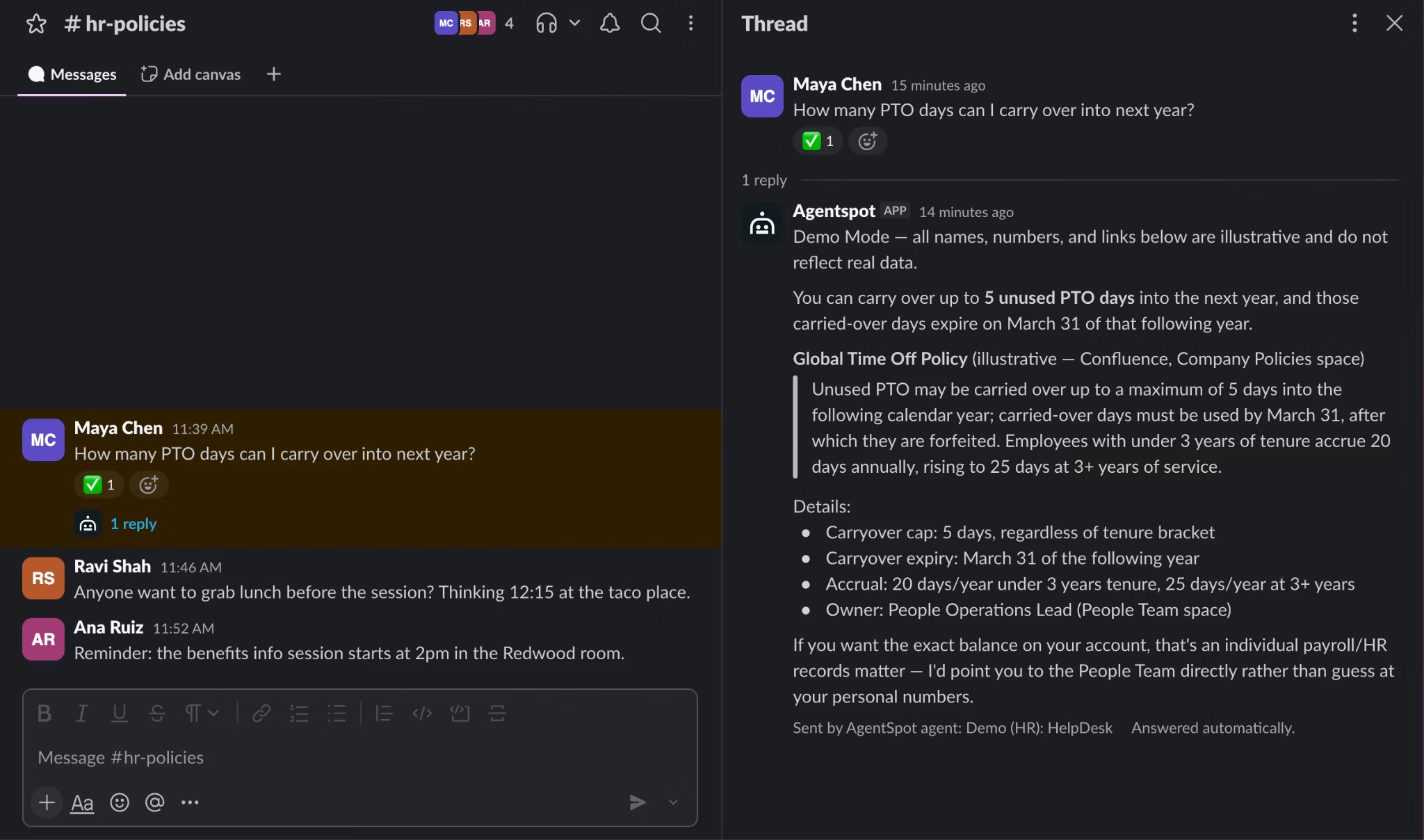
The demo #hr-policies channel in When it can help mode, where the agent answered the PTO question in a thread and stayed out of the lunch invite and the reminder. Names and avatars are changed, and the answer uses demo data.
When Should a Slack AI Agent Reply?
A good colleague can tell which questions are theirs to answer. In AgentSpot, an admin decides how much the agent says in each channel by picking one of three reply modes:
In When it can help mode, the agent reads everything in the channel and replies only when it's useful, so it behaves most like a teammate.
In Only when @mentioned mode, the agent waits for a tag, as it did before listen mode; it's the only option for channels shared with other Slack workspaces.
In Every conversation mode, the agent can reply to every new message, which fits channels built for asking one agent questions, like a help desk.
Instead of tuning keyword lists or confidence thresholds, you choose the mode, and the agent judges each message against it. For most channels, start with When it can help and adjust after you've seen a week of replies.
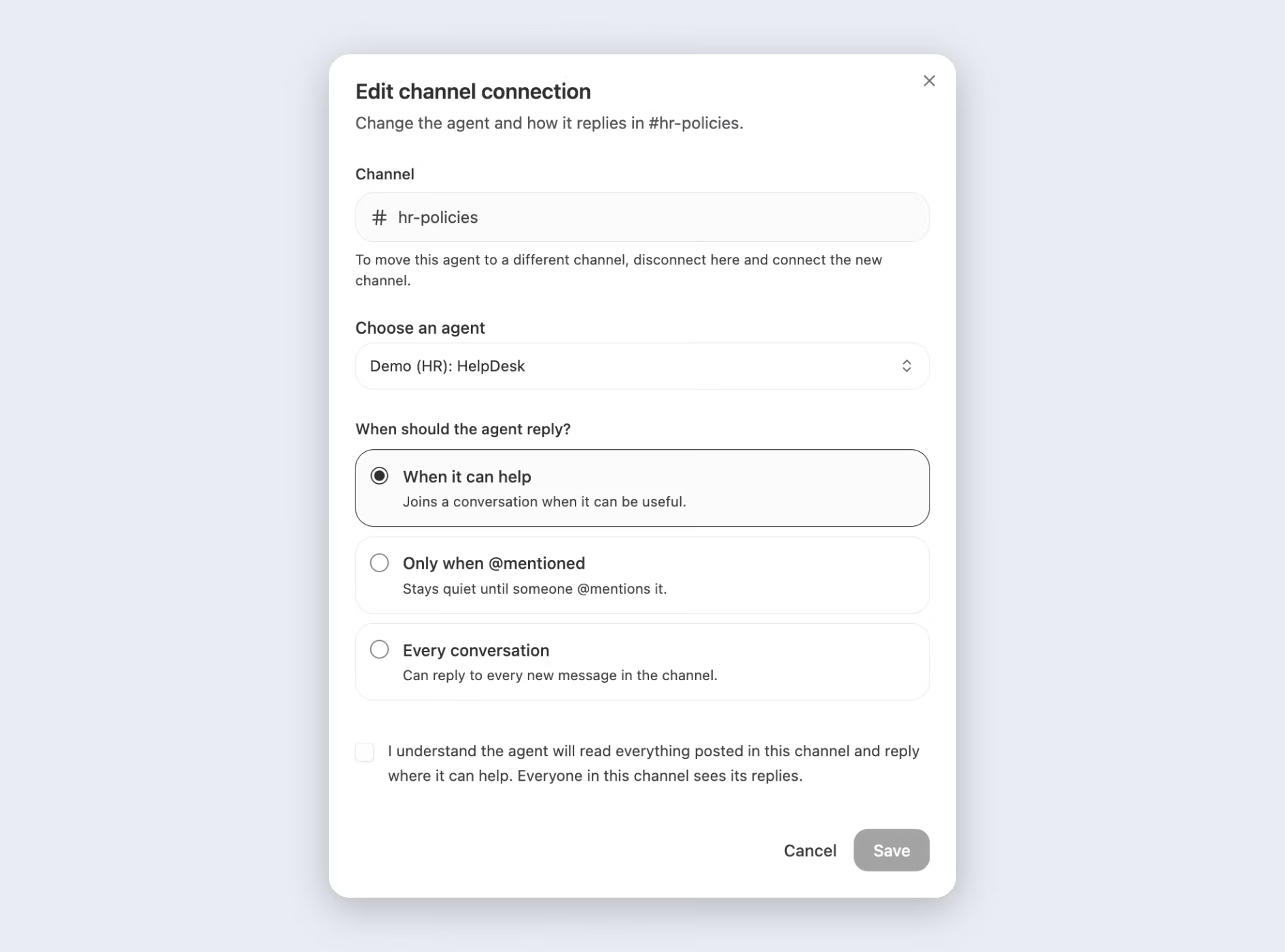
The Edit channel connection dialog in Admin Settings > Slack apps. The disclosure text changes with the reply mode.
What's in an AI Agent's Slack Reply?
You don't have to change how you ask. Write the question the way you'd ask a colleague, and the agent answers in kind: in the thread, with its sources and name attached. In the demo, the HR HelpDesk agent's knowledge comes from policy pages in Confluence.
Earlier in the same channel, Jordan asked, "Do I need a receipt for a $40 client dinner, and how long do I have to submit the expense?" Even though the message didn't tag anyone, the agent's reply read like an answer from a well-informed colleague:
It led with the answer: yes, a receipt is required, and Jordan has 30 days to submit the expense.
It showed its sources by quoting the two policy pages it used, Expense Reimbursement Process and Corporate Card Policy, and saying where each one lives.
It applied the policy to Jordan's question: a $40 dinner is above the $25 receipt threshold and within the $75 per person dining guideline.
It signed the reply with the agent's name and "Answered automatically."
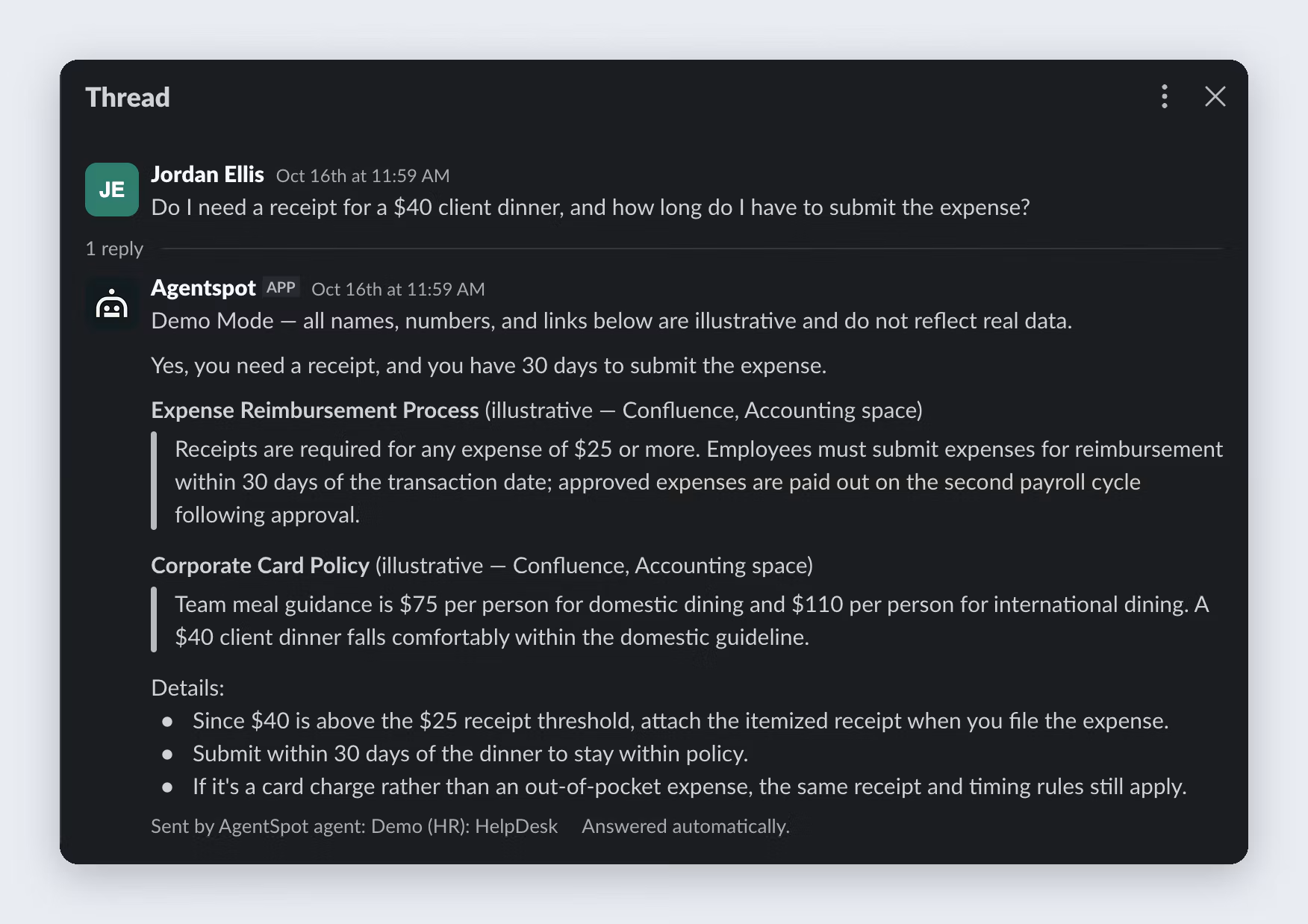
The full reply. Each claim is quoted from a named policy page, and the footer shows which agent answered.
The footer tells anyone reading the thread later which agent wrote the reply, and that nobody had to call it in by name.
What happens when a question needs a person? When Maya asked how many PTO days carry over, the agent gave the policy: up to five days, which must be used by March 31. For an exact personal balance, it pointed Maya to the People team instead of guessing.
Want replies like these in one of your own channels?
How Do You Add Agents to Slack?
Adding an AI teammate to a channel takes a short form in Admin Settings. Before you start, you'll need admin access to AgentSpot, a Slack app that is connected and verified, and an agent to add. If your Slack app isn't set up yet, the AgentSpot administration docs walk you through it.
Once those are in place, follow these steps:
Invite the bot to the Slack channel, since AgentSpot can't connect a channel the bot hasn't joined.
In AgentSpot, open Admin Settings > Slack apps and select your Slack app.
Under Channel connections, click Connect channel.
Choose the channel and the agent. Public and private channels both work.
Under When should the agent reply?, choose When it can help or Every conversation.
Select the disclosure checkbox, then click Connect channel.
To change modes later, open the channel's menu in the Channel connections table, choose Edit, pick the new mode, and select the disclosure checkbox again. If the dialog only offers Only when @mentioned, either listen mode isn't turned on for your organization or your Slack app isn't verified yet.
How Do Admins Control Slack AI Agents?
People will only welcome an agent that reads the whole channel if they trust it. So listen mode leaves two decisions with admins: where agents listen and how often they reply. Because of that split, your AI workforce stays centrally managed, and no agent shows up in a channel unless an admin put it there.
Only AgentSpot admins connect channels and choose reply modes, so regular users can't point an agent at a channel.
Before a channel is saved, the admin has to accept a disclosure that says what the agent will do.
Channels shared with other Slack workspaces are limited to Only when @mentioned.
The Slack apps page lists every connected channel with its agent and reply mode, so you can review them all in one table.
If listen mode is turned off for your organization, channels that used it show as Paused until an admin switches them to Only when @mentioned.
For When it can help, the disclosure reads: "I understand the agent will read everything posted in this channel and reply where it can help. Everyone in this channel sees its replies."
The Slack apps table gives you one place to see which agent answers in which channel, and in which mode.
Because everyone in the channel sees the agent's replies, match what your agent can read to who is in the channel. If an agent can read the employee handbook, an all-company HR channel is a good fit; keep any agent with access to compensation data in a channel limited to the people allowed to see it.
Where Should Your First AI Teammate Start?
Start where your team keeps answering the same questions. HR, benefits, IT help, and new-hire onboarding channels are usually good candidates, as long as the answers already live in documents your agent can read. What about sales? Internal sales channels where reps ask about products and accounts are good candidates, too.
Before you add the agent, build and test it in AgentSpot: scroll back through the channel, copy the questions people asked there, and check the agent's answers to them.
Once testing looks right, connect the channel in When it can help mode and read its replies for a week. After that, decide whether it should move to Every conversation or back to Only when @mentioned.
As you connect more channels, you end up with multiple agents in multiple channels: an HR agent answers in #hr-policies, and an IT agent covers your help desk.
Is Listen Mode Right for Your Team?
The best answer to a Slack question is the one that shows up in the same thread, before anyone has to ask twice. Your team already asks its questions in Slack, so give it an AI teammate that answers there and knows when to stay out of the way.
Which channel keeps answering the same question every week? That's your starting point. Try AgentSpot free, no card needed, and build your first agent this week.
Prefer a walkthrough? Book an AgentSpot demo to see listen mode at work.
What Do People Ask About Listen Mode?
Multiplayer AI is AI that works with a team instead of one person at a time: agents are shared across the company, and people can work with the same agent in the same conversation. Listen mode brings that shared setup into your Slack channels.
Not unless you want it to. In When it can help mode, it replies when it has something useful to add and stays quiet otherwise. If you pick Every conversation mode, it can reply to any new message, while Only when @mentioned mode makes it wait until someone tags it.
No. It replies in the thread under the message it's answering, so the channel's main view stays the same.
Yes, because each channel connection has its own agent and reply mode. Your #hr-policies channel can use an HR agent in When it can help mode, while an IT help desk channel uses another agent in Every conversation mode. As you add more connections, you can still review every one of them in a single table.
Recent Articles

NOVEMBER 2026 · 8 MIN
Multiplayer AIMultiplayer AI in Action: Product Spotlight Recap
Get the top takeaways from AgentSpot: Multiplayer AI in Action, including how Enmacc did weeks of work in a day and how you can build your own AI agents easily.

OCTOBER 2026 · 10 MIN
Multiplayer AIWhy Your Company Will Run Thousands of Purpose-Built Agents
Too many AI agent skills make answers slow and unpredictable. Learn why purpose-built agents, co-created by your experts and governed by IT, scale across teams.

OCTOBER 2026 · 8 MIN
Multiplayer AIAI Spend You Can Forecast: Why AgentSpot Uses DO Credits
Tired of token anxiety? See how AgentSpot DO credits meter AI by outcome, with weekly allowances, free building, and a spend number you can defend to your CFO.